Launch offer: 33% off either plan until October 27.
Not sure yet? Try it free for 14 days and choose later. US prices; other countries get a similar discount.
Built by Narrators for Narrators
Read hands-free. Focus.
Let your voice turn the page.
NarrationCue listens as you narrate and follows your place in the manuscript automatically, using voice activation, not timed autoscroll — no swiping a screen, no losing your place mid-take. It also means no more swivelling between a script on one screen and your DAW on another, refocusing your eyes between two different distances hundreds of times a session — the kind of repetitive strain that quietly wrecks your neck, shoulders, and back over a long project. Your recording chain — mic, interface, DAW, plugins — stays completely untouched; NarrationCue just watches the page so you can stay in the read.
Bring in a marked-up PDF and your highlights, underlines, strikethroughs, line-tool pause marks and typed notes come with it, in their colors. Freehand pen marks stay behind, because NarrationCue can't read your terrible handwriting. (Kidding. It can't read anyone's.) Footnotes are also ported over. Read in any of seven fonts, with the full passage, just the current word, or no highlight at all.
macOS 15 Sequoia or later · Universal (Apple Silicon & Intel)
A Brief Walkthrough of NarrationCue
Five minutes, start to finish — importing a manuscript, setting up the reading view, and starting a session.
Your audio setup is none of our business.
NarrationCue is not a recorder. It never sees, touches, or routes your audio signal. It helps you focus on the reading.
NarrationCue runs alongside this chain — never inside it. It reads your manuscript and listens for where you are in it. That's the whole job. Your gain staging, your plugins, your bit depth, your workflow: exactly as you built it, exactly as you like it.
No audio routing
NarrationCue never appears as an input or output device. Nothing to route, nothing to configure in your DAW.
No recording engine
It doesn't record anything. Recording happens entirely in the software you already trust for that job.
One screen, not two
No more twisting and craning to refocus from iPad to monitor. Everything lives on ONE screen — your script and your DAW.
Everything built around one job: staying in your place.
Real-time voice following
NarrationCue tracks what you're saying against your manuscript as you read, moving the cue forward in step with your voice — including natural pauses, retakes, and re-reads.
On-device recognition option
Keep speech recognition on-device when you want your narration to stay off the network. Your manuscript never has to leave your Mac.
Import DOCX, PDF, RTF & TXT
Your PDF markup comes with you: highlights, underlines, strikethroughs, line-tool marks and typed notes. PDFs are also checked for hidden text layers, duplicated passages, and OCR corruption before import — a suspicious file is rejected, not silently mangled.
Chapter detection & navigation
Chapters are detected automatically and are easy to review, rename, or adjust, so you can jump straight to the section you're recording.
Adjustable voice gate
Tune sensitivity to your mic, your booth, and your voice, so room noise doesn't get mistaken for narration.
Fonts, highlights & reading modes
Seven reading fonts, adjustable size and line width, and a highlight that shows the full passage, just the current word, or nothing at all. Plus a true dark mode for a low-light booth and a warm, low-glare sepia page for long sessions.
A closer look.
Setting up your first session, start to finish.
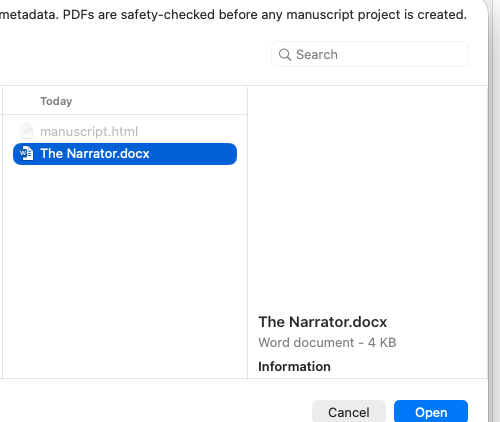
Import your manuscript
Import your manuscript in PDF, DOCX, or RTF file format. NarrationCue processes and converts it into a clean text file, stripping out all headers, footers, page numbers, and other extraneous elements, and preserving formatting. If you've marked up a PDF, your highlights, underlines, strikethroughs, lines drawn with a line tool, and typed notes come in too. Freehand pen marks and handwriting don't.
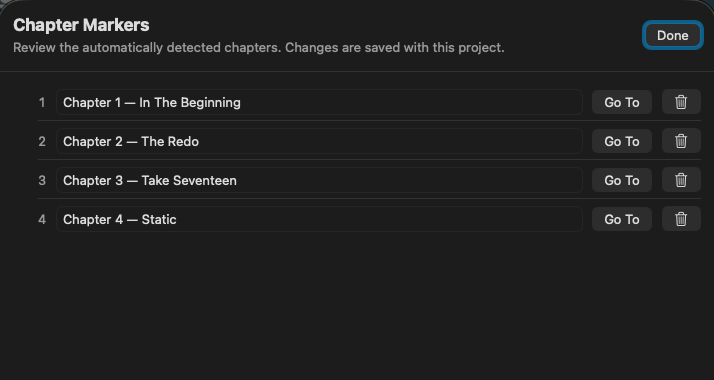
Check your chapters
Chapter markers are detected automatically the moment your manuscript loads. Review the list, rename anything that needs it, or jump straight to a chapter to spot-check the split. Missed a heading? Add a marker at your current cue, or run detection again after making edits.
Choose your font and size
Pick one of seven reading fonts, from San Francisco to Georgia, then set the size for reading across a booth or up close at a desk. Changes show instantly, and NarrationCue remembers both for next time.
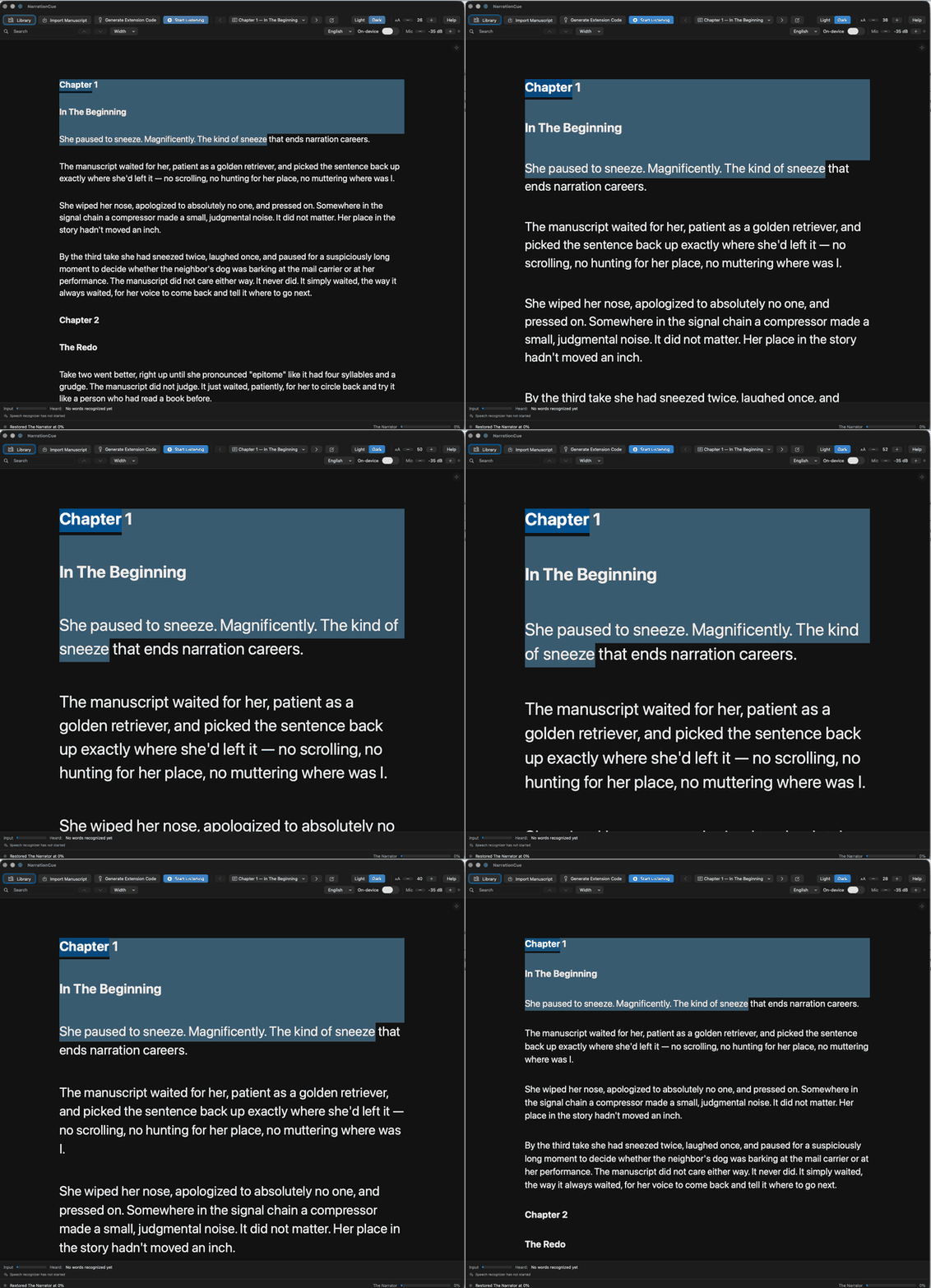
Set your line width
Narrow, medium, or wide? Pick how far your eye has to travel per line. A narrower column means shorter eye movements and less chance of losing your place between lines.
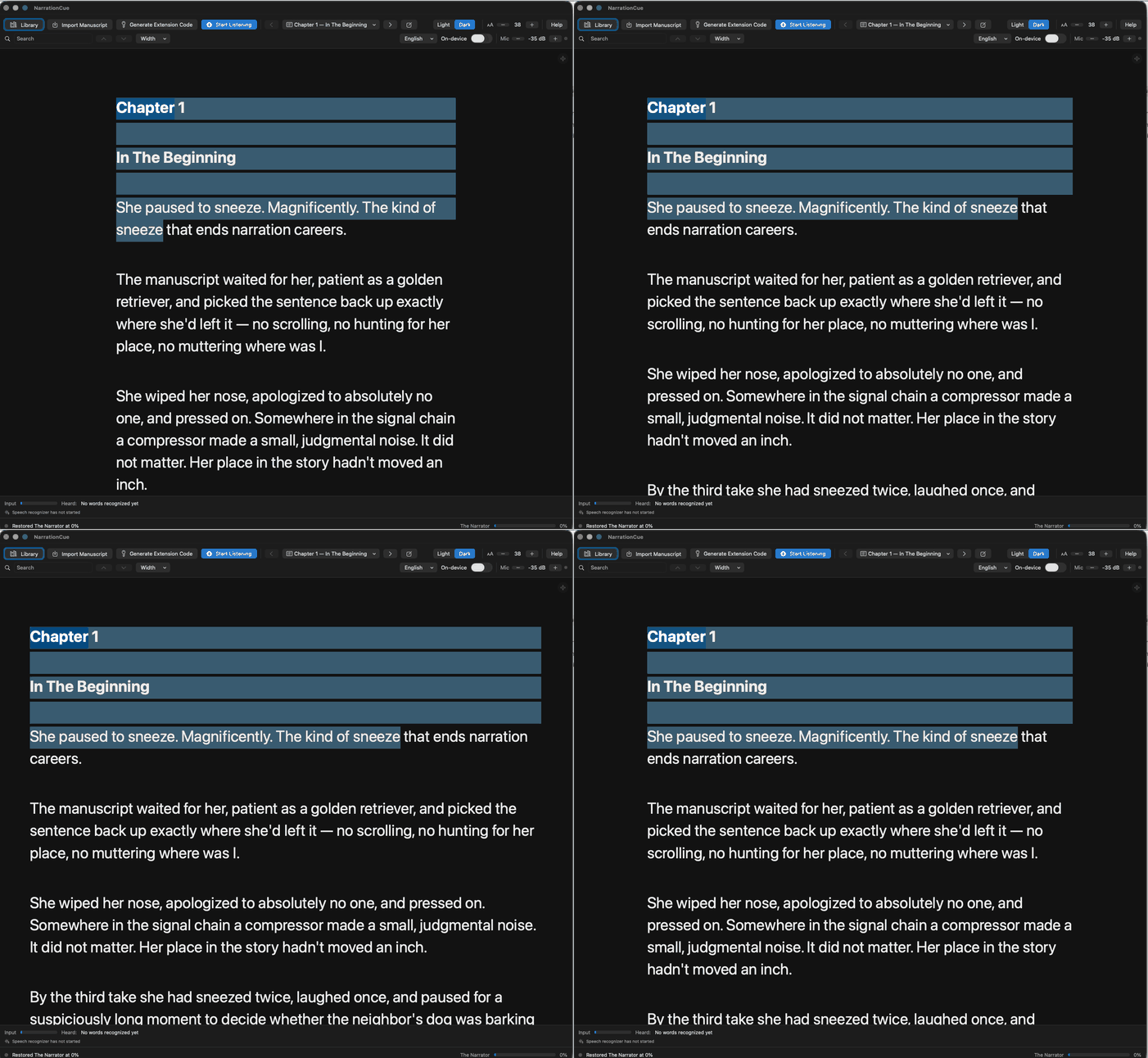
Go distraction-free
One shortcut hides every toolbar, button, and status bar. What's left is your manuscript, full screen, nothing else competing for your eye mid-take. Press it again any time to bring your controls back.
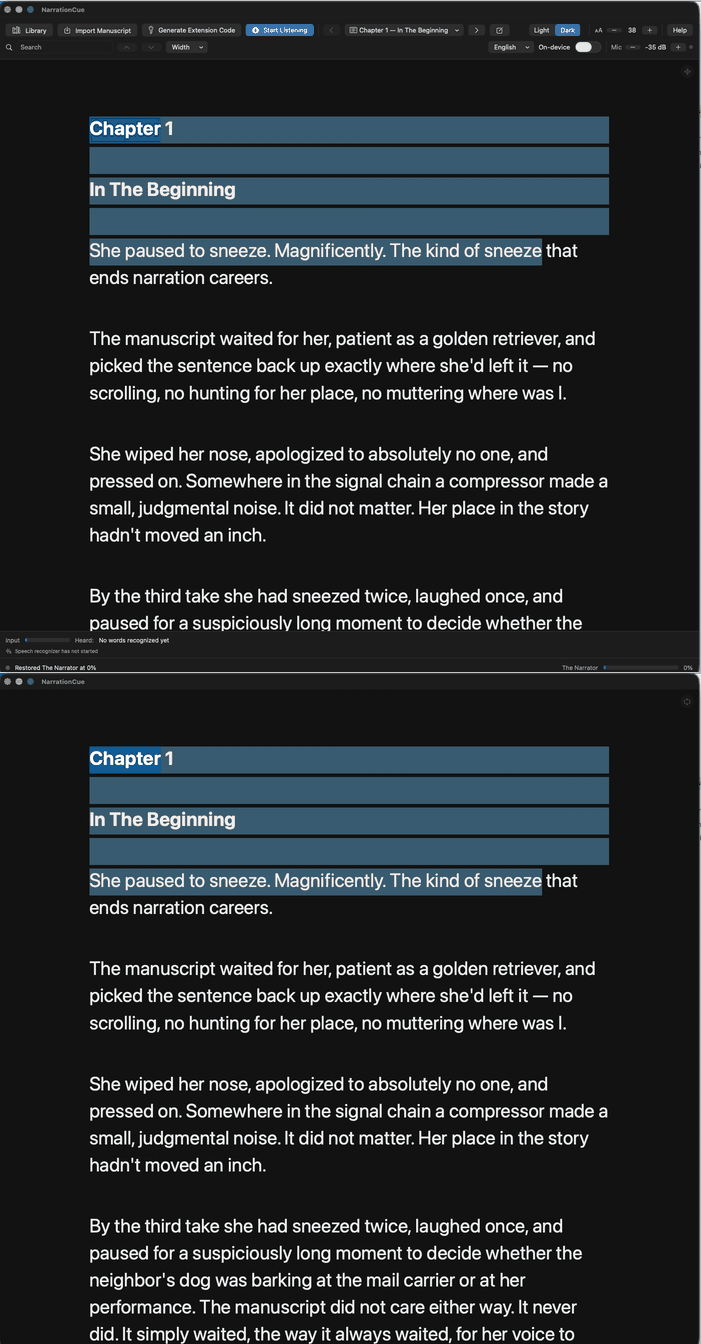
Press Listen
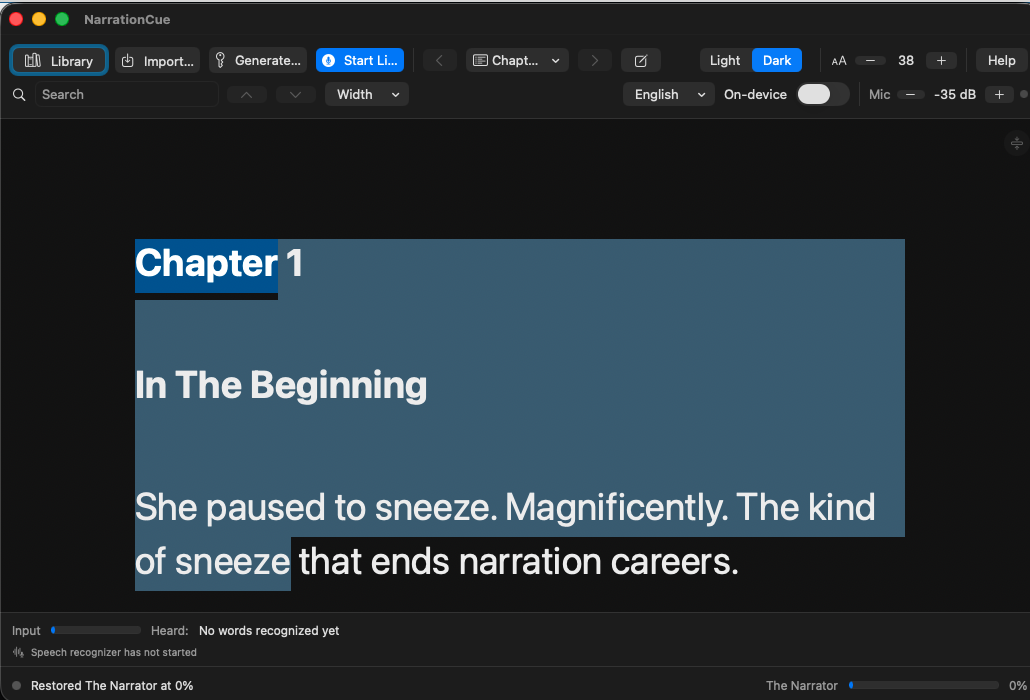
One click and NarrationCue starts tracking your voice against the page, highlighting your place and moving forward as you read. No hands. No scrolling.
Get NarrationCue
Now on the Mac App Store, free to download with a full-featured 14-day trial.
Launch offer until October 27: 33% off either plan.
Or download free and try it for 14 days first:
Requires macOS 15 Sequoia or later.